Real castings are run by a team: a casting director, one or two assistants, sometimes a second director on a separate project. If everyone keeps their own spreadsheets and chats, the agency spends its time syncing up: "did you reply to that actress?", "who approved this boy?", "where are the profiles from Sunday's extras?".
A shared agency account removes those questions: everyone sees the same castings and applications, and permissions decide who can change what.
How an agency is organised
- An agency has an owner — the casting director who created it. The owner manages the settings, the plan and the team.
- Staff are other casting directors the owner has invited. Each signs in with their own login.
- A person can belong to only one agency, so castings and applications never get mixed up between companies.
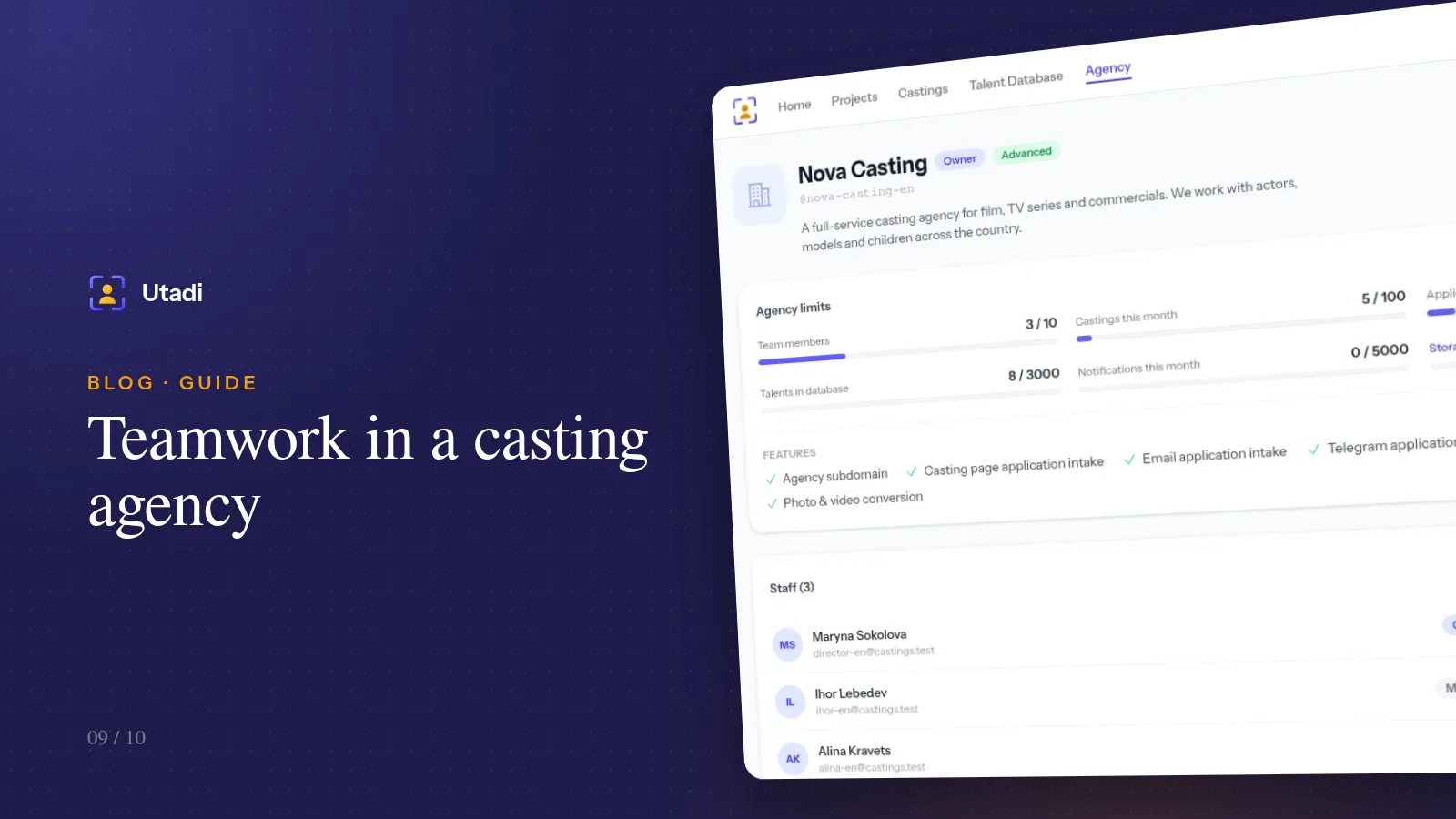
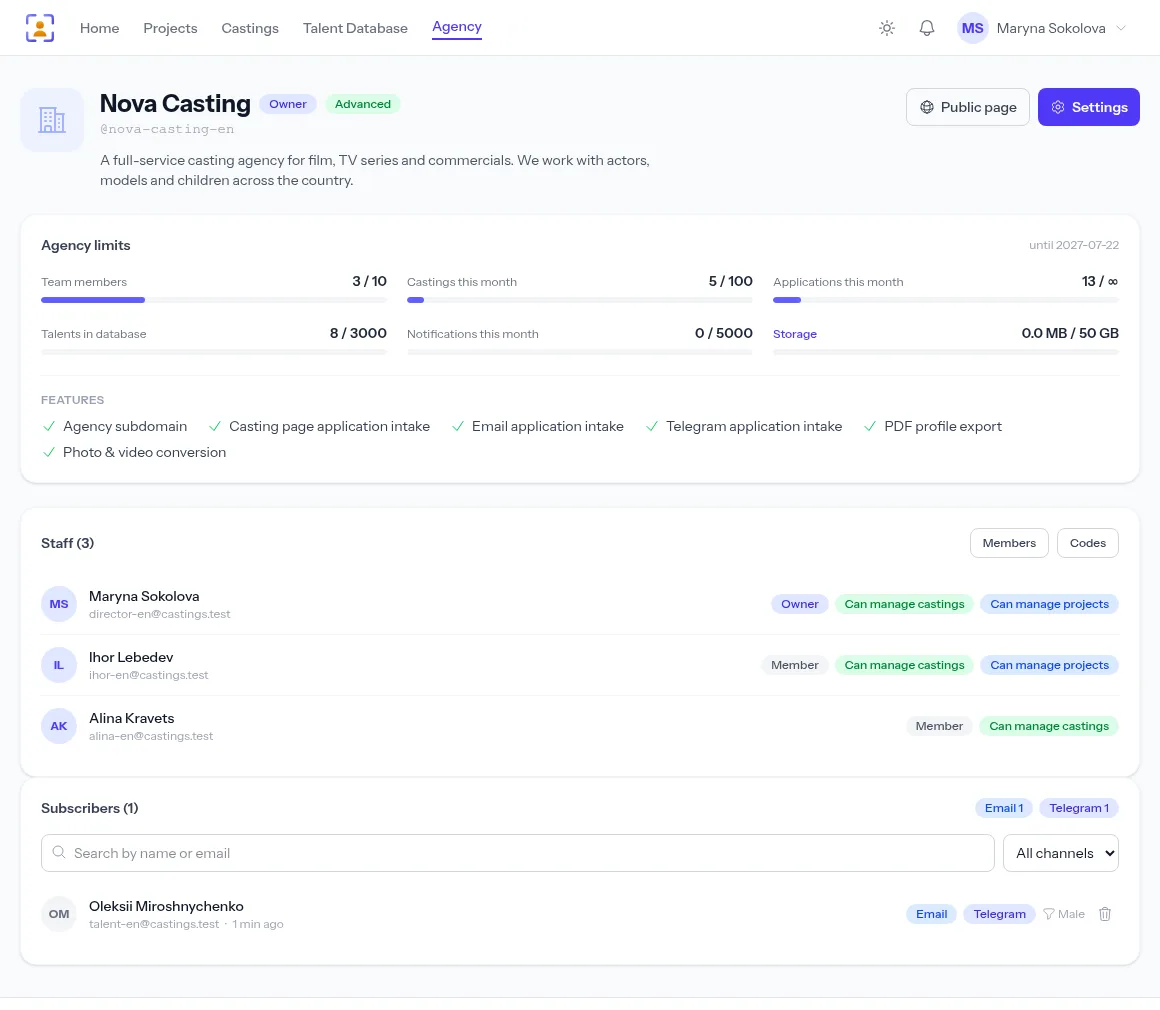
The agency page shows it all at once: plan limits, the staff list with their permissions, and the page's subscribers.
Step 1. Create an invite code
Open Agency → Codes and click Create code. You can limit how many times the code can be used and how long it stays valid. Send it to your colleague any way you like.
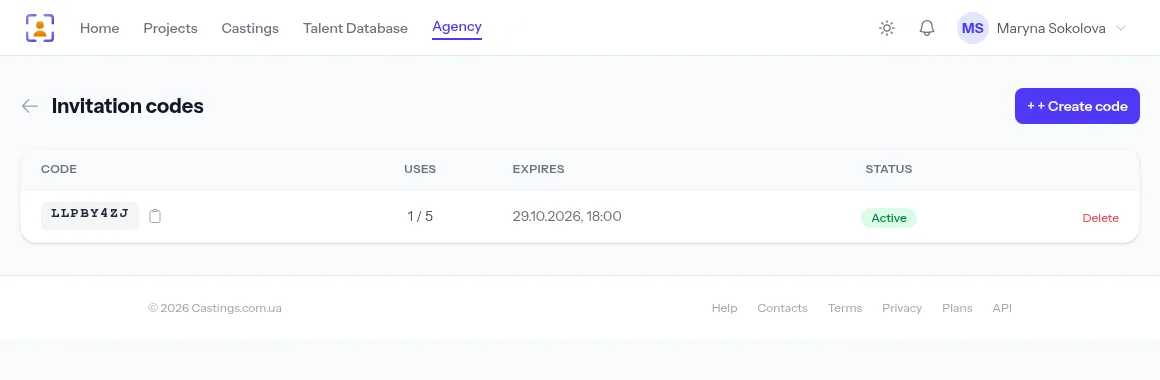
Tip. Make codes single-use and short-lived — a day or two. If a code accidentally ends up in a group chat, nobody can use it a month later. For several assistants, create several codes rather than one multi-use code.
Step 2. Your colleague joins the agency
Your colleague signs up as a casting director, opens the Agency section and enters the code in the field for joining an existing agency. They then appear in the staff list, and all that's left is to grant permissions.
How many staff you can invite depends on your plan — the owner counts too. If the limit is reached, the code won't work and your colleague sees a clear message.
Step 3. Grant permissions
Each staff member has three independent toggles:
| Permission | What it allows |
|---|---|
| Can manage castings | create, edit and delete the agency's castings |
| Can manage projects | create and change projects — series, campaigns, festivals |
| Can delete talents | delete profiles from the talent database |
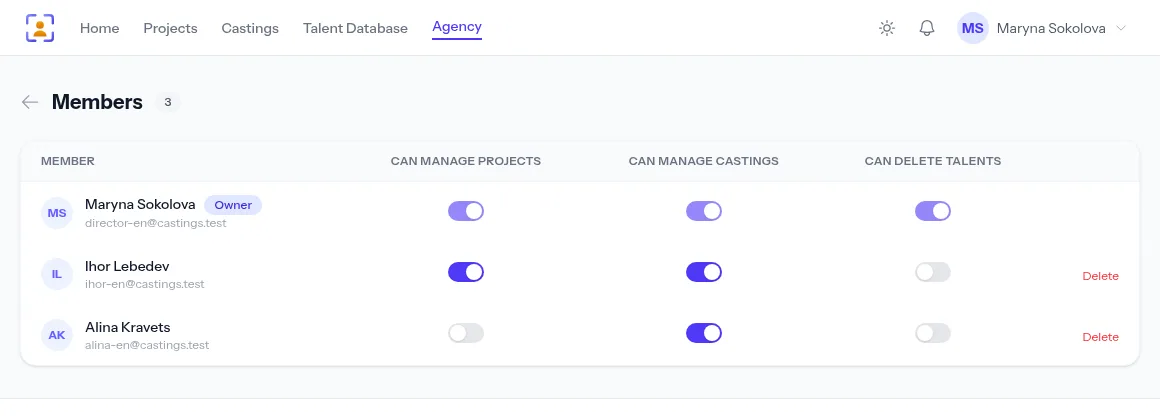
Without any permissions a staff member still sees the agency's castings and works with applications — views them, selects, changes statuses. Permissions are only needed to create and delete.
A typical split of roles
Casting director (owner). All permissions, the plan, page settings, connecting the Telegram bot and the mailbox. Approves the final choice.
A second director on a project. Manages castings and projects — runs their own project independently.
Assistant. Manages castings — publishes casting calls and does the first pass on applications. No right to delete profiles: deleting is irreversible and is best left to senior staff.
Intern or helper on an extras shoot. No permissions: views applications and sets statuses by your rules.
Rules for selecting together
Permissions are half the job. The other half is agreements:
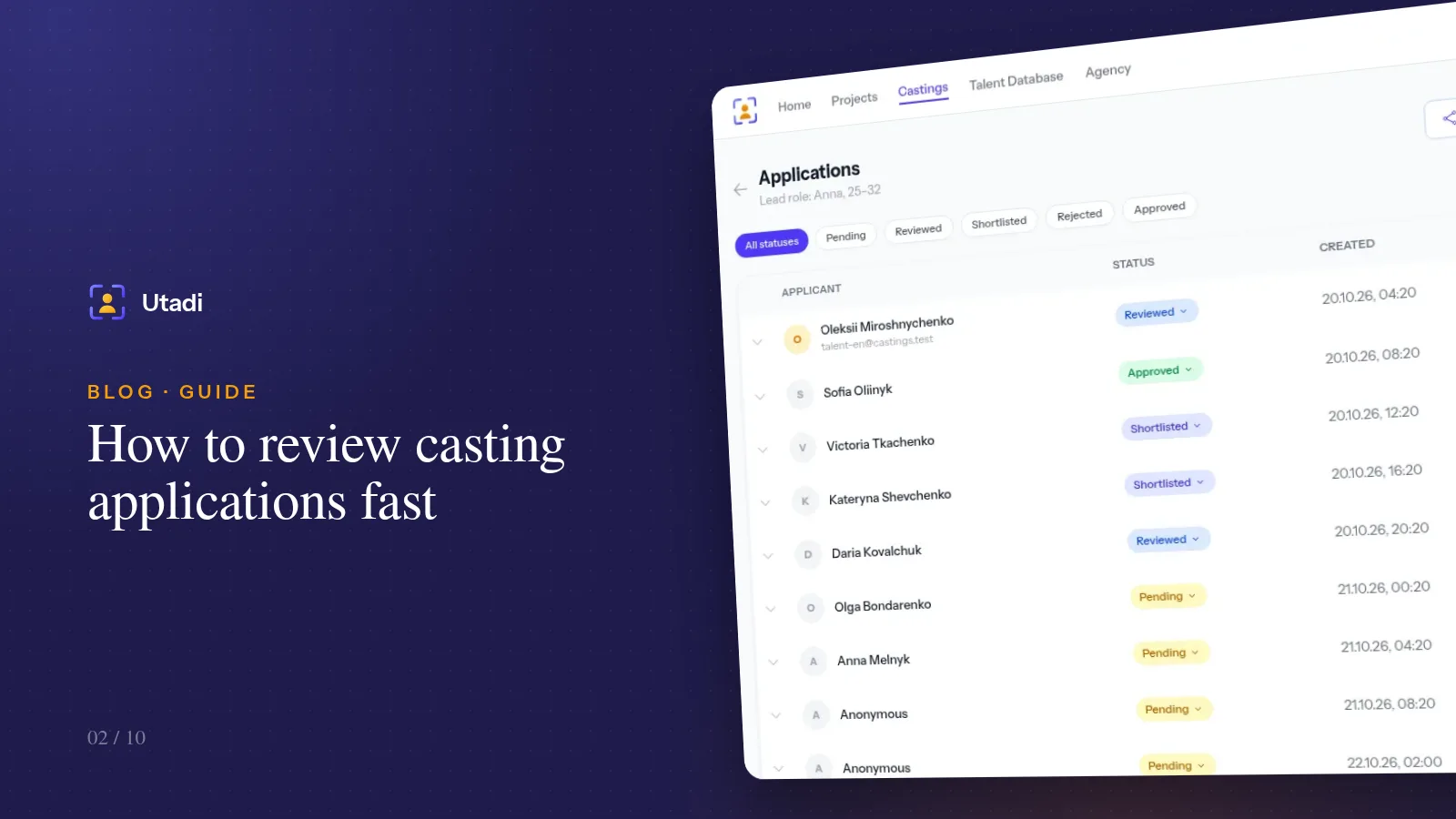
- A decision is a status. If an assistant thinks a candidate is strong, they set "Shortlisted" instead of writing in a chat. Everyone sees the status and the decision isn't lost.
- One casting, one person responsible. Even if three people review applications, one person replies to actors and finalises the list.
- Reply to candidates through the account. A reply from a Telegram conversation or an email is kept in the history, so colleagues can see the person has already been answered.
- Finish the statuses. Don't leave half the applications "Pending" after an actor is approved: close the casting, reject the rest — and whoever opens the list next sees at once that it's settled.
What stays personal
Not everything in the account is shared. The talent database, tags and notes are personal to each casting director — it's their working file, and colleagues don't see it. To share candidates, export a selection to PDF or Excel — see Exporting actor profiles. A personal Telegram account, if you've connected one, is also visible only to you.
When someone leaves
Open Members and click Delete next to the staff member. They lose access to the agency's castings and applications immediately, and everything they did — castings, applications, statuses — stays with the agency. While you're at it, check the codes page and delete any unused invites.
In short
Invite colleagues with single-use codes, give each the minimum permissions they need and agree that decisions are recorded as statuses. Then the agency works as one team: everyone sees the same castings and applications, nobody duplicates work, and the owner stays in control of the plan, the settings and the team.
Everything this feature does, on one page: Agency database software.