For actors, Telegram is the most natural way to answer a casting call: they see a post in a channel, write a couple of lines and send photos and a video from their phone. For the casting director this usually means chaos in their direct messages. An agency bot keeps things easy for the actor and removes the chaos for you: every message with the casting's keyword becomes an application in your account.
How it works
- You publish a casting and give it a keyword, for example
ANNA. - In the casting call you write: "Apply via @your_agency_bot and start your message with ANNA".
- The actor messages the bot. The bot finds the casting by the keyword and replies with the details it needs.
- The actor sends text, photos and videos — in as many messages as they like.
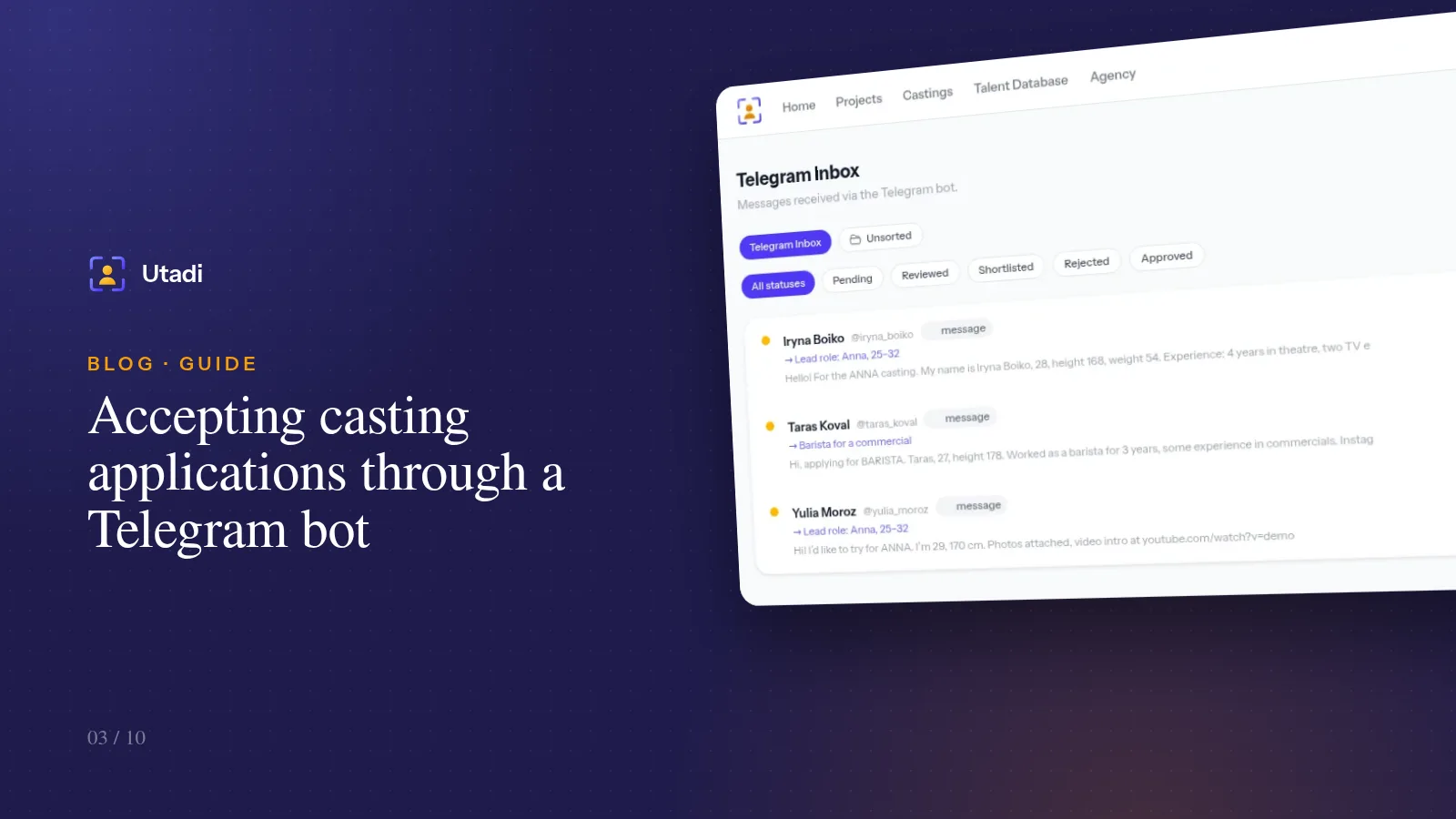
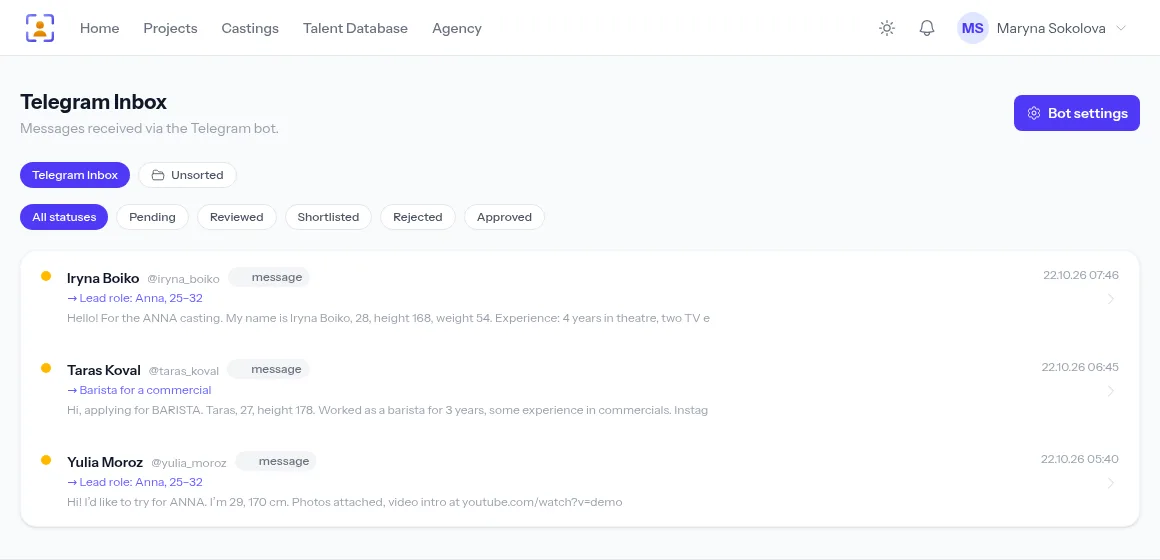
- When they tap Done (or simply go quiet for a few minutes), the application is finished and appears in your Telegram inbox and in the casting's applications list.
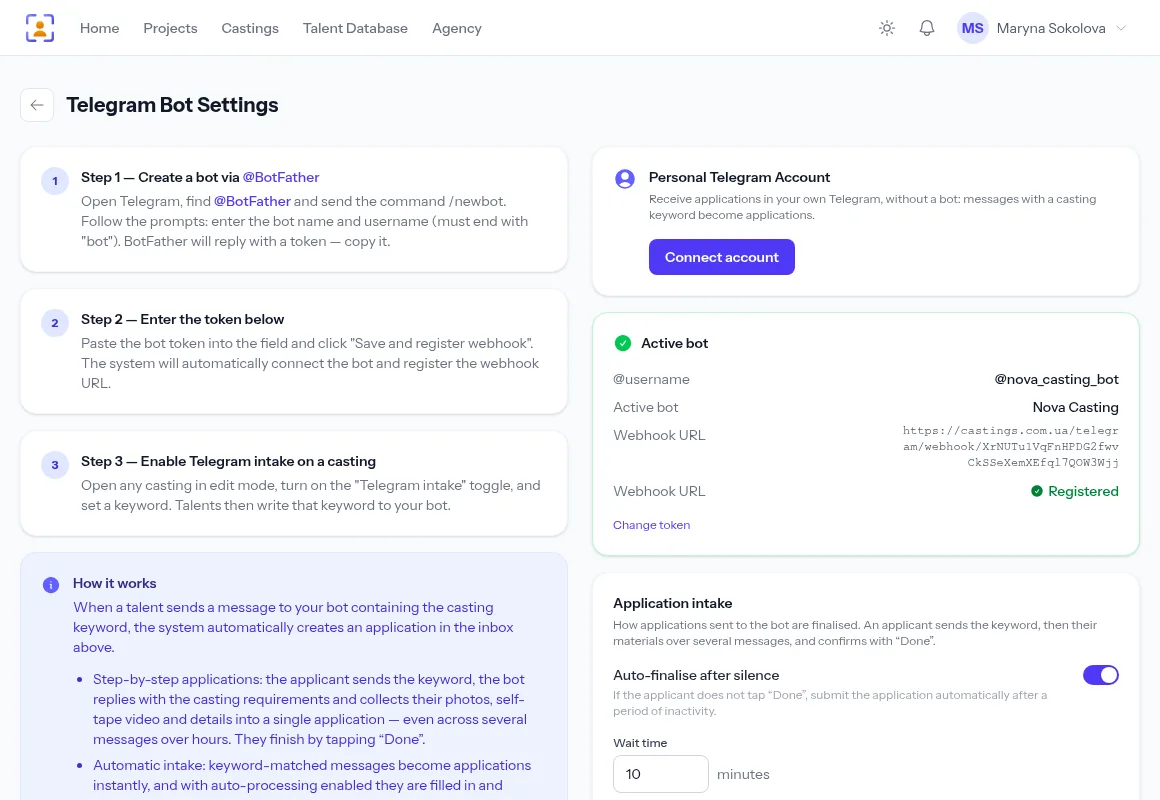
Step 1. Create a bot with BotFather
In Telegram, open the official @BotFather bot, send /newbot and follow the prompts: enter a display name (actors will see it, e.g. "Nova Casting") and a username that must end in bot. BotFather replies with a token — a long string like 123456789:AA…. Copy it.
Tip. Pick a short, recognisable username — people will type it by hand:
@novacasting_botbeats@nova_casting_agency_kyiv_official_bot. Give the bot your agency logo as its picture (/setuserpicin BotFather) so actors can see they are writing to a real agency.
Step 2. Connect the bot to your account
Go to Castings → Telegram inbox → Bot settings, paste the token and save. The system checks the token and registers the webhook — the address Telegram sends messages to — on its own. When everything is fine, the "Active bot" card shows the Registered status.
Step 3. Turn on intake for the casting
Open the casting for editing and fill in the keyword. That one field enables two channels at once — Telegram and email; clear it to switch intake off. Keywords are unique across the whole platform: if a word is already taken by another casting, you'll be asked for a different one — add the project name, for instance: ANNA-WIND.
A good keyword is:
- short — one word, no spaces:
ANNA,BARISTA,FATHER; - recognisable — tied to the role and easy to remember from the casting call;
- not an everyday word — "casting" or "hello" appear in every message and would match it to the wrong role.
Case doesn't matter: anna, Anna and ANNA all work the same.
Applications split across messages
Actors rarely send everything at once. First comes "Hi, about the ANNA casting", then photos, then a video link, then "oops, forgot my height". The bot collects all of it into one application until the actor taps Done.
If they don't tap it, auto-finish kicks in: after a pause (10 minutes by default) the application is submitted on its own. The pause can be set from 1 minute to a full day. For castings that ask for video self-tapes, make it longer — uploading a heavy video from a phone takes time.
Chat with the actor from your account
The page of a Telegram application is the whole conversation. On the left are all the candidate's messages with photos and videos; on the right is the processing form: create a casting application, add the person to your talent database, or both.
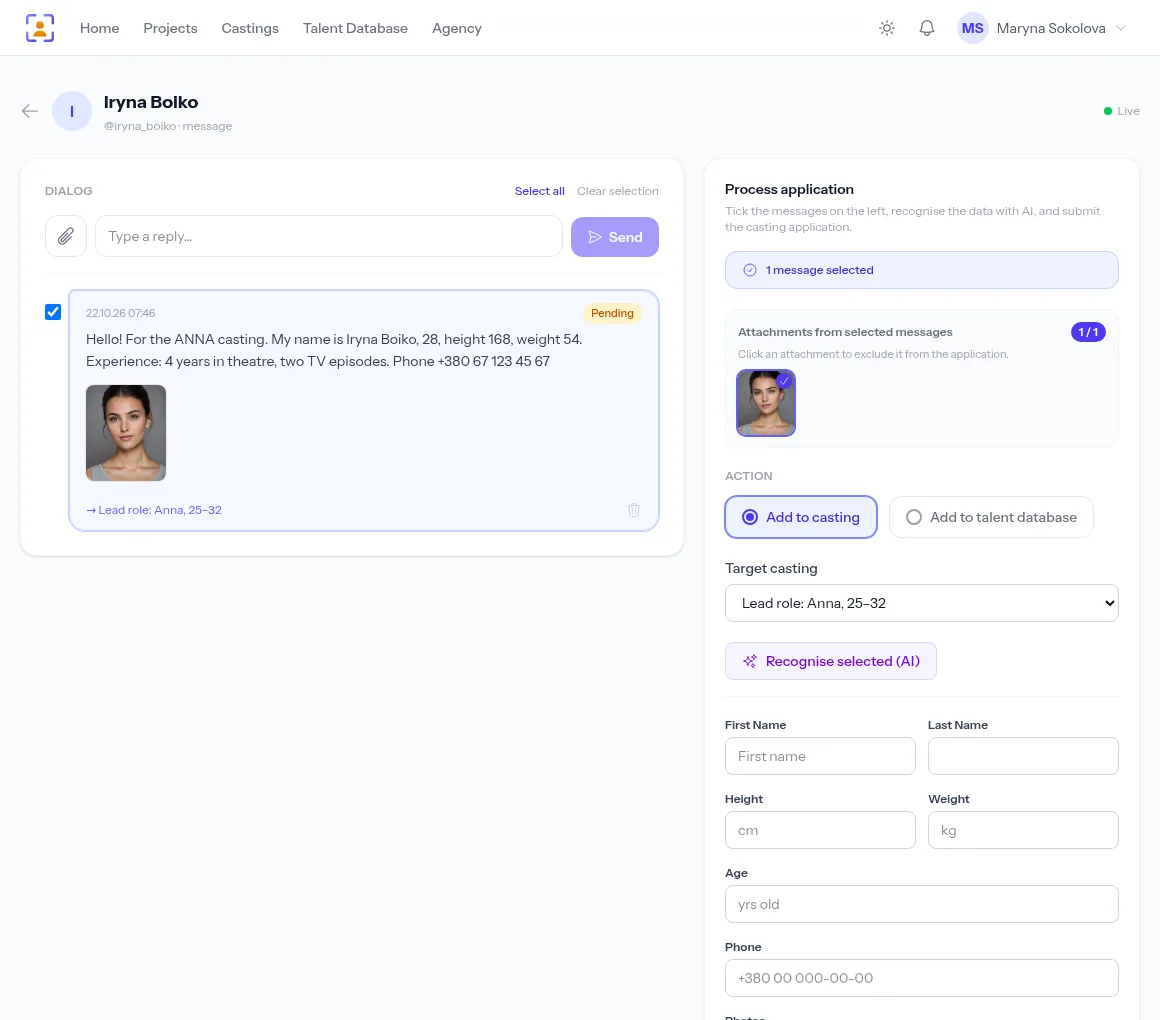
You can reply right there — the message goes out from the bot into the same chat. "Could you send a full-length photo, please?" — and the next batch of media is attached to the same application.
Messages without a keyword
Not everyone follows the rules. A message without a keyword isn't lost — it goes to the Unsorted tab. If the sender already has an application for any casting, the photos and videos they send are attached to it automatically. If not, you decide: link the message to a casting, add the person to your database or delete it.
Automatic processing
For mass castings — extras, promo events, commercials with hundreds of replies — turn on AI auto-processing for the casting. Once an application is finished, AI splits the message text into the form fields (name, age, height, phone) and the photos and videos are attached to the application. All that's left for you is the selection. Details in AI parsing of casting applications.
Why a bot and not a personal account
You can connect your personal Telegram account too — it's handy for reading and answering your direct messages from the account. But for mass intake a bot is more reliable:
- no risk of a ban — bots are made to talk to strangers, while automating a personal account this way can get your number restricted;
- higher limits — a bot copes with the rush of replies in the first hours after publishing;
- stability — a bot token doesn't depend on your phone or two-factor authentication;
- buttons and menus — Done, subscribing to casting announcements via
/start, and hints on how to apply.
Checklist before publishing a casting
- The bot is connected and the webhook status is Registered.
- The casting has a unique keyword.
- The casting call mentions the bot's username and the keyword.
- The auto-finish pause suits the amount of media you expect.
- Send the bot a test message from your own account and check that the application appears.
In short
A Telegram bot turns the channel actors like most into an orderly queue of applications. Create the bot in a couple of minutes with BotFather, paste the token into the settings, give the casting a keyword — and every reply, photos and videos included, arrives in the same place as the applications from your website.
Everything this feature does, on one page: Telegram & email intake.